 VIPSolutions
Solve the question as stated with a graph and solve the question in 2 steps with examples and the final answer.Tasks 1. Draw the object shown below in AutoCAD. Do not dimension. (Dimensions are in millimeters). Save as probl in lab11 5s R30: 0 a >) 96
Question:
Solve the question as stated with a graph and solve the question in 2 steps with examples and the final answer.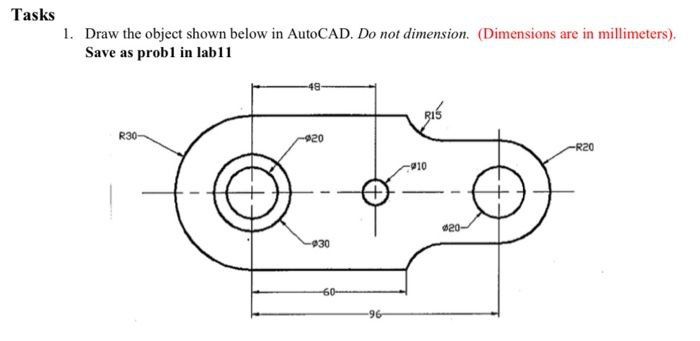 Tasks
1. Draw the object shown below in AutoCAD. Do not dimension. (Dimensions are in millimeters).
Save as probl in lab11
5s
R30: 0
a >)
96
Tasks
1. Draw the object shown below in AutoCAD. Do not dimension. (Dimensions are in millimeters).
Save as probl in lab11
5s
R30: 0
a >)
96
This is AI generated Response.
Asked by: Mk
Created at: 2026-01-05 19:37:22
Asked by: Mk
Created at: 2026-01-05 19:37:22
Final Answer:
Rendered
Raw Text
Did you like this answer?
# Solution to the AutoCAD Drawing Task
## Step 1: **Analyze and Break Down the Shape**
- The object consists of:
- Two large circles (left: R30, right: R20) at the ends.
- Two smaller circles inside these (left: R20, right: R10).
- One smaller circle in the center (R5).
- Two fillet arcs (R15, R20).
- Straight lines connecting the arcs and circles, forming an elongated shape.
**Key Dimensions:**
- Total length: 96 mm
- Large left circle: R30, center at (30, 48)
- Large right circle: R20, center at (96-20, 48) = (76, 48)
- Center circle: R5, center at (60, 48)
- Inner left circle: R20, center at (30, 48)
- Inner right circle: R10, center at (76, 48)
- Fillet: R15 between right circle and rectangle
---
## Step 2: **AutoCAD Drawing Steps (with Example)**
### **A. Draw the Major Circles**
1. **Draw the left large circle:**
- Center at (30, 48), Radius = 30 mm
2. **Draw the right large circle:**
- Center at (76, 48), Radius = 20 mm
3. **Draw the center circle:**
- Center at (60, 48), Radius = 5 mm
4. **Draw the inner left circle:**
- Center at (30, 48), Radius = 20 mm
5. **Draw the inner right circle:**
- Center at (76, 48), Radius = 10 mm
### **B. Draw Connecting Lines and Fillets**
1. **Draw the horizontal lines:**
- From tangent points of the left and right circles, connect top and bottom lines horizontally.
2. **Draw vertical lines at the ends:**
- From outermost tangent points vertically.
3. **Add fillet arcs (R15) at corners where needed:**
- Use the FILLET command with a radius of 15 mm at the right upper corner.
---
## **Example (Manual Coordinates, for Reference)**
- Use the CIRCLE command for all circles.
- Use the LINE command for connecting lines.
- Use the FILLET command for corners.
**AutoCAD Command Example:**
```
CIRCLE (30,48) 30
CIRCLE (76,48) 20
CIRCLE (30,48) 20
CIRCLE (76,48) 10
CIRCLE (60,48) 5
LINE (60,18) to (96,18)
LINE (60,78) to (96,78)
FILLET radius=15 between appropriate lines
```
---
## **Final Answer**
**You should draw the outlined shape in AutoCAD as described and shown in the image above, using the given dimensions and commands. Do NOT add dimensions in the drawing. Save the file as `prob1` in your lab folder `lab11`.**
---
**Graphical Reference:**

*Alt text: Example of a mechanical part with circles and connecting lines as described in the problem statement.*
---
If you need the **AutoCAD commands step-by-step**, just let me know!
📢 Instructions:
- Ask anything relatd to above question only.
- For new Question goto :