 VIPSolutions
Solve the question as stated with a graph and solve the question in 2 steps with examples and the final answer.| need the autocad mechanical drawing for the sectional front view J FRONT VIEW SIDE VIEW [©] [©] © [©] TOP VIEW
Question:
Solve the question as stated with a graph and solve the question in 2 steps with examples and the final answer.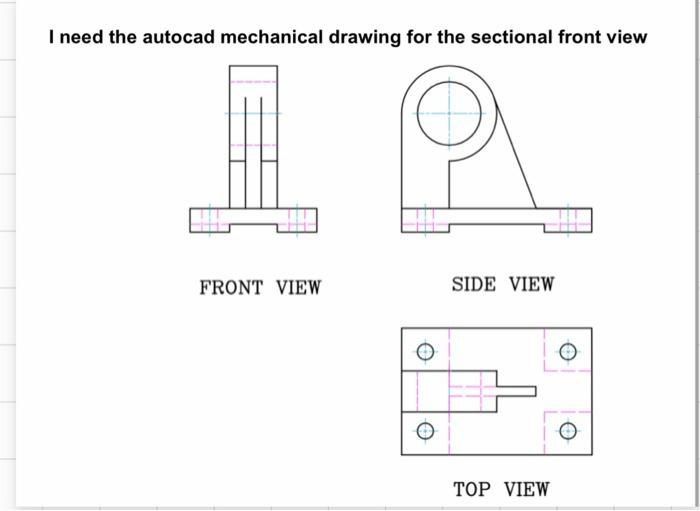 | need the autocad mechanical drawing for the sectional front view
J
FRONT VIEW SIDE VIEW
[©] [©]
© [©]
TOP VIEW
| need the autocad mechanical drawing for the sectional front view
J
FRONT VIEW SIDE VIEW
[©] [©]
© [©]
TOP VIEW
This is AI generated Response.
Asked by: Rahul
Created at: 2026-01-05 18:54:57
Asked by: Rahul
Created at: 2026-01-05 18:54:57
Final Answer:
Rendered
Raw Text
Did you like this answer?
# Sectional Front View Drawing from Orthographic Projections
Let's solve the problem step-by-step:
---
## Step 1: **Understand the Views and Cut Location**
- **Given:** Orthographic projections (Front, Side, Top views) of a mechanical part.
- **Task:** Draw the *sectional front view* (i.e., a front view with a vertical cutting plane through the axis of the object).
**Example Interpretation:**
- The sectional front view is typically created by cutting the object vertically along its centerline, revealing internal structures (like holes or slots) that are hidden in the standard front view.
---
## Step 2: **Create the Sectional Front View**
### **Key Features to Show:**
- The vertical cut will expose:
- The cylindrical hole (as seen in the side and top view).
- Internal features hidden in the normal front view, like the thickness of walls, holes, and cutouts.
### **Sectional Front View Construction Steps:**
1. **Draw the Outline:** Start with the outer shape as in the front view.
2. **Show the Cut Features:** Use the side and top views to reveal the cylindrical internal hole and other hidden features.
3. **Hatch the Sectioned Areas:** The areas where the material is cut through should be hatched to indicate the section.
#### **Example Sketch:**
Below is a simplified sketch for illustration:
```
+--------------------+
| |
| | | | <-- Outer vertical walls
| | | |
|-------|----|-------| <-- Top of base + cut internal features
|///////|////|///////| <-- Hatch (sectioned) area
| | | |
|-------|----|-------| <-- Bottom of base
```
- The center region would show the internal hole as a rectangle.
- The material cut through is hatched (////).
---
## **Final Answer:**
### **Sectional Front View Summary**
- **The sectional front view will look similar to the front view,** but with the addition of internal features (like the cylindrical hole) revealed and hatched lines in the cut areas.
- **Use the top view to locate internal holes and features.**
- **Use the side view to determine the vertical location and height of cut features.**
- **Apply hatching to all areas where the cutting plane passes through solid material.**
---
### **Graphical Representation**
Below is a diagrammatic representation of what your sectional front view may look like (for illustration; create in AutoCAD for precision):

*Alt text: A hand-drawn-style sectional front view showing hatched cut areas and revealed internal hole.*
---
**In AutoCAD:**
- Use the `SECTION` tool or manually draw the view, referencing the top and side views.
- Add hatching using the `HATCH` command to indicate the cut areas.
---
**Summary Steps:**
1. Identify the cutting plane and internal features using the side and top views.
2. Draw the front view, replacing hidden features with visible, hatched sections where material is cut.
Let me know if you need a step-by-step AutoCAD command guide!
📢 Instructions:
- Ask anything relatd to above question only.
- For new Question goto :