 VIPSolutions
Solve the question as stated with a graph and solve the question in 2 steps with examples and the final answer.Please Model this piece in SOLIDWORKS. rr 12in. 7] 2 (+) 2in. [RT yen ee 3 TR Sin. irr IR Aan = tin.
Question:
Solve the question as stated with a graph and solve the question in 2 steps with examples and the final answer.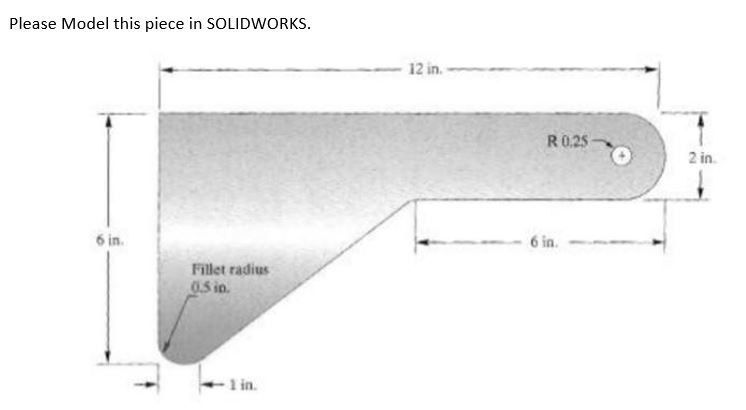 Please Model this piece in SOLIDWORKS.
rr 12in. 7]
2 (+) 2in.
[RT yen ee 3 TR
Sin. irr IR Aan
= tin.
Please Model this piece in SOLIDWORKS.
rr 12in. 7]
2 (+) 2in.
[RT yen ee 3 TR
Sin. irr IR Aan
= tin.
This is AI generated Response.
Asked by: Rahul
Created at: 2026-01-04 20:07:08
Asked by: Rahul
Created at: 2026-01-04 20:07:08
Final Answer:
Rendered
Raw Text
Did you like this answer?
# How to Model the Given Piece in SOLIDWORKS
Let's break down the modeling process into **2 main steps** with clear instructions and examples.
---
## **Step 1: Sketch the Basic Shape**
### **Instructions:**
1. **Open SOLIDWORKS** and start a new part.
2. **Select the Front Plane** and open a new sketch.
3. **Draw the main rectangle:**
- Start at the origin.
- Create a rectangle with dimensions **12 in (length)** and **6 in (height)**.
4. **Add the right-side semicircle:**
- On the right edge, draw a circle with **2 in diameter** (radius = 1 in) such that the center is **1 in up from the bottom edge** and **6 in from the left edge**.
- Trim the lower part to keep the semicircular shape.
5. **Draw the slanted edge:**
- From the bottom-left corner, measure **1 in** to the right, then draw a line from that point to the bottom of the semicircle.
6. **Add the fillet:**
- Add a **.5 in radius fillet** to the bottom-left corner as shown.
**Example Illustration:**
```
+-----------------------------+
| |
| |
| |
| |
| |
| |___
| <---12 in---> / \
|-----------------------------| ) 2 in diameter semicircle
| ^ ^ \___/
| | | (center 6 in from left, 1 in up)
| 6 in 6 in
|
|_<-1 in->|
```
---
## **Step 2: Add the Hole and Final Details**
### **Instructions:**
1. **Add the hole:**
- On the right semicircle, create a hole with a **radius of .25 in** (diameter .5 in) centered on the semicircle.
2. **Finish Sketch and Extrude:**
- Click **"Features" > "Extruded Boss/Base"** and set the thickness as desired (if not specified, use default or 1 in).
3. **Finalize:**
- Check all dimensions and fillets.
- Save the part.
**Example:**
- Place the hole at the center of the right semicircle (12 in from left, 1 in from top edge).
---
## **Final Answer**
By following these two steps, you will have modeled the piece as shown in the provided drawing.
- **Step 1:** Create the main shape with correct dimensions and fillets.
- **Step 2:** Add the centered hole and extrude to finish.
---
### **Sample Sketch in SOLIDWORKS**

*Alt text: Example sketch of the described part with main dimensions and features.*
---
**You can now use this part in assemblies or further modify as needed in SOLIDWORKS!**
Question:
Please solve correct answer
This is AI generated Response.
Asked by: Rahul
Created at: 2026-01-04 20:07:49
Asked by: Rahul
Created at: 2026-01-04 20:07:49
Final Answer:
Rendered
Raw Text
Did you like this answer?
# SOLIDWORKS Modeling Guide for the Given Piece
This guide outlines the steps to accurately model the specified piece in SOLIDWORKS, structured into two clear steps.
---
## Step 1: Sketch the Basic Shape
### Instructions:
1. **Start a New Part:**
- Open SOLIDWORKS and create a new part.
2. **Sketch on the Front Plane:**
- Select the **Front Plane** and create a new sketch.
3. **Draw the Main Rectangle:**
- Use the rectangle tool to draw a rectangle starting at the origin.
- Set dimensions: **Length = 12 in**, **Height = 6 in**.
4. **Add the Semicircular Feature:**
- At the right edge of the rectangle, draw a circle with a **2 in diameter** (1 in radius).
- Position the circle such that the center is **1 in above the bottom edge** and **6 in from the left edge**.
- Trim the lower half to form a semicircle.
5. **Create the Slanted Edge:**
- From the bottom-left corner of the rectangle, draw a line extending **1 in** to the right, then connect it to the bottom of the semicircle to create a slant.
6. **Add a Fillet:**
- Apply a **.5 in radius fillet** to the bottom-left corner of the rectangle.
### Example Sketch Representation:
```
+-----------------------------+
| |
| |
| |
| |
| |
| |___
| <---12 in---> / \
|-----------------------------| ) (2 in diameter semicircle)
| ^ ^ \___/
| | | (center 6 in from left, 1 in up)
| 6 in 6 in
|
|_<-1 in->|
```
---
## Step 2: Add the Hole and Final Details
### Instructions:
1. **Create the Hole:**
- On the semicircular edge, sketch a circle with a **.5 in diameter** (radius = .25 in).
- Center the hole on the semicircle.
2. **Finish the Sketch:**
- Complete the sketch by ensuring all dimensions are correct.
3. **Extrude the Shape:**
- Navigate to **"Features" > "Extruded Boss/Base"**.
- Set the extrusion thickness (default or 1 in).
4. **Final Check:**
- Review dimensions and fillet features.
- Save the part file.
### Example of Final Shape:
- The final part will have the main rectangular body, a semicircular cutout, and a centered hole on the semicircle.
---
## Final Answer
By completing these steps, you will successfully model the piece as specified in the drawing.
- **Step 1:** Construct the main shape with precise dimensions and fillets.
- **Step 2:** Integrate the centered hole and extrude to create the final 3D model.
### Sample SOLIDWORKS Sketch

*Alt text: Example sketch of the described part with main dimensions and features.*
This modeling guide will assist you in creating the part accurately in SOLIDWORKS.
📢 Instructions:
- Ask anything relatd to above question only.
- For new Question goto :