 VIPSolutions
Give step-by-step solution with explanation and final answer: Solved question with diagramw QT NGS | Fr BT) Gg Fle “LS T-® ad NSP
Question:
Give step-by-step solution with explanation and final answer:
Solved question with diagram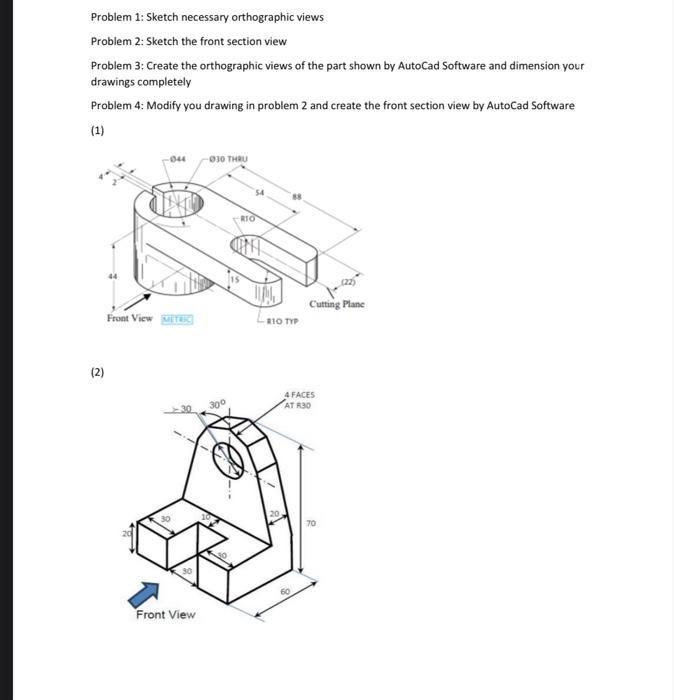 w
QT NGS
| Fr BT) Gg Fle
“LS
T-®
ad
NSP
w
QT NGS
| Fr BT) Gg Fle
“LS
T-®
ad
NSP
This is AI generated Response.
Asked by: Rahul
Created at: 2026-01-18 09:43:32
Asked by: Rahul
Created at: 2026-01-18 09:43:32
Final Answer:
Rendered
Raw Text
Did you like this answer?
# Step-by-Step Solution with Explanation
Below is a **step-by-step solution** for the tasks based on the provided images and descriptions.
---
## **Problem 1: Sketch Necessary Orthographic Views**
**Orthographic views** include:
- **Front View**
- **Top View**
- **Side View**
### **(1) For the First Part (Image 1):**
#### **Front View:**
- Shows the height and width.
- You will see the large circular hole, the step, and the projection.
- Hidden lines for internal features.
#### **Top View:**
- Shows the width and depth.
- Outlines the slot and the hole.
- Displays the full length of the horizontal arm.
#### **Side View (Right Side):**
- Shows height and depth.
- Displays the rectangular projection and thickness.
**Diagram Example:**
(You would sketch these views using the dimensions from the image.)
---
## **Problem 2: Sketch the Front Section View**
- A **front section view** is taken by cutting vertically through the object (cutting plane is shown in the image, labeled as "Cutting Plane").
- In the section view, show the **internal features** (such as holes, slots) as visible.
- Use **hatch lines** to indicate the cut surfaces.
**Diagram Example:**
(Sketch the front view but show cut surfaces as hatched and internal shapes as visible.)
---
## **Problem 3: Orthographic Views in AutoCAD (with Dimensions)**
- Use **AutoCAD Software** to create:
- **Front View**
- **Top View**
- **Side View**
- Add **all necessary dimensions** (as given in the image: radii, lengths, hole diameters, etc.)
- Ensure your drawing is **to scale** and **fully dimensioned**.
---
## **Problem 4: Modify and Create the Front Section View in AutoCAD**
- Using the drawing created in Problem 2, **modify** it in AutoCAD.
- Create the **front section view** digitally, showing:
- Hatch patterns for sectioned areas
- All internal features exposed by the cutting plane.
---
# **Example Solution for Problem 1 and 2 (Manual Sketch)**
Here’s a quick description of how you would sketch these views:
### **1. Manual Orthographic Views**
#### **Front View**
- Draw the main vertical face with the large circular hole.
- Add the projection on the left.
- Indicate hidden lines for the slot inside.
#### **Top View**
- Draw the outline matching the projection in top.
- Show the hole and slot as visible lines.
#### **Side View**
- Draw the side profile, showing the thickness of the projection and main body.
- Show the slot as a hidden line.
---
### **2. Manual Front Section View**
- Start with the front view.
- Where the cutting plane passes, show the internal holes and slots.
- Sectioned areas are hatched.
---
# **Summary Table**
| Problem | Task Description | Output (Manual/AutoCAD) |
|-------------------|---------------------------------------------------|----------------------------------|
| Problem 1 | Orthographic views (Front, Top, Side) | Sketch (Manual) |
| Problem 2 | Front Section View | Sketch (Manual) |
| Problem 3 | Orthographic views with dimensions | AutoCAD Drawing |
| Problem 4 | Front Section View (modified in AutoCAD) | AutoCAD Drawing |
---
## **Final Answer**
**For a complete solution:**
1. **Sketch orthographic views** for each part (front, top, side).
2. **Sketch the front section view** using the indicated cutting plane.
3. **Draw these in AutoCAD** and fully dimension them.
4. **Modify the AutoCAD drawing** to show the sectioned front view.
> **Note:**
> - The sketches must match the dimensions and geometry in the provided images.
> - For AutoCAD work, use layers for clarity and dimension tools for accuracy.
---
If you need a specific drawing or a step-by-step sketch for a particular part (1 or 2), let me know, and I can provide a detailed hand-sketched solution for that part!
📢 Instructions:
- Ask anything relatd to above question only.
- For new Question goto :