 VIPSolutions
Give step-by-step solution with explanation and final answer:w QT NGS | Fr BT) Gg Fle “LS T-® ad NSP
Question:
Give step-by-step solution with explanation and final answer: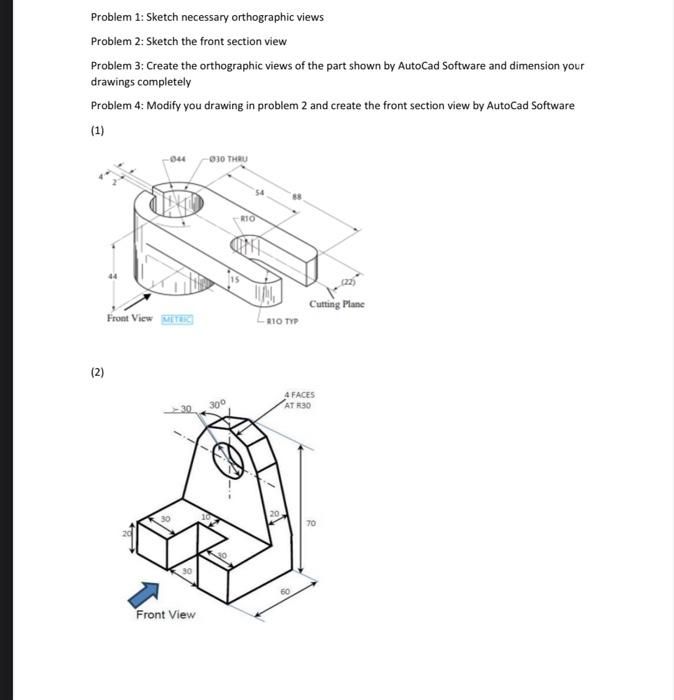 w
QT NGS
| Fr BT) Gg Fle
“LS
T-®
ad
NSP
w
QT NGS
| Fr BT) Gg Fle
“LS
T-®
ad
NSP
This is AI generated Response.
Asked by: Rahul
Created at: 2026-01-18 08:34:30
Asked by: Rahul
Created at: 2026-01-18 08:34:30
Final Answer:
Rendered
Raw Text
Did you like this answer?
# Step-by-Step Solution
Let's solve each problem based on the given images.
---
## **Problem 1: Sketch Necessary Orthographic Views**
### **Explanation**
Orthographic views typically include:
- **Front View**
- **Top View**
- **Right Side View**
You generate these views by projecting the 3D object onto perpendicular planes.
### **For Image (1):**
- **Front View:** Already indicated in the image.
- **Top View:** Shows the circular hole and the overall length/width.
- **Right Side View:** Shows the height and the profile of the forked end.
#### **Sketch (Hand Sketch Example)**
```
Front View: Top View: Right Side View:
___________ ___________ ___________
| | | | | |
| | | O O | | |
| O O | | | | | | |
|___________| |___________| |___________|
```
*O represents holes, and the lines represent external edges.*
---
## **Problem 2: Sketch the Front Section View**
### **Explanation**
A sectional view is obtained by "cutting" the part along a plane (shown as the "Cutting Plane" in image 1) and looking directly at the cut surface.
### **For Image (1):**
- The section view will reveal the hole (Ø30) and the internal cut profile.
- Hatch lines typically indicate the cut surfaces.
#### **Sketch (Hand Sketch Example)**
```
Section View:
__________________
| |
| //////// | <-- Hatch lines indicate the sectioned area
| | | |
|___|______|_______|
```
---
## **Problem 3: Create Orthographic Views and Dimension in AutoCAD**
### **Instructions**
1. **Draw the 3D Model** in AutoCAD using the given dimensions.
2. **Project Orthographic Views** (Front, Top, Right Side).
3. **Add Dimensions** to all key features:
- Hole diameters
- Lengths, widths, and heights
- Radii (R10, R30, etc.)
- Any angles (e.g., 30°)
#### **Orthographic View Example for Image (1):**
- **Front View:** Shows height and width, with visible holes.
- **Top View:** Shows length and width, with hole positions.
- **Right Side View:** Shows height and length.
---
## **Problem 4: Modify Drawing for Front Section View in AutoCAD**
### **Instructions**
1. **Copy the Front View** from Problem 3.
2. **Apply the Section Cut** as indicated by the cutting plane.
3. **Show Internal Features** exposed by the cut, using hatch patterns for cut areas.
4. **Dimension Internal Features** as needed.
---
## **Final Answers Summary**
### **For Image (1):**
1. **Orthographic Views:** Front, Top, Right Side, fully dimensioned.
2. **Front Section View:** Sectioned along the indicated plane, showing internal holes and features.
3. **AutoCAD Drawings:** Should include all views and be fully dimensioned as per the given isometric drawing.
### **For Image (2):**
Repeat the above steps (orthographic projections, section view, and dimensioning) using the specific dimensions and shapes from the second image.
---
## **Key Points When Drawing:**
- **Use Hidden Lines** for features not visible in the view.
- **Use Section Lines/Hatching** for cut surfaces in the sectional view.
- **Dimension Clearly** according to the drawing conventions.
---
If you need **specific sketches** or **AutoCAD commands** for any step, let me know!
📢 Instructions:
- Ask anything relatd to above question only.
- For new Question goto :