 VIPSolutions
Give step-by-step solution with explanation and final answer:w QT NGS | Fr BT) Gg Fle “LS T-® ad NSP
Question:
Give step-by-step solution with explanation and final answer: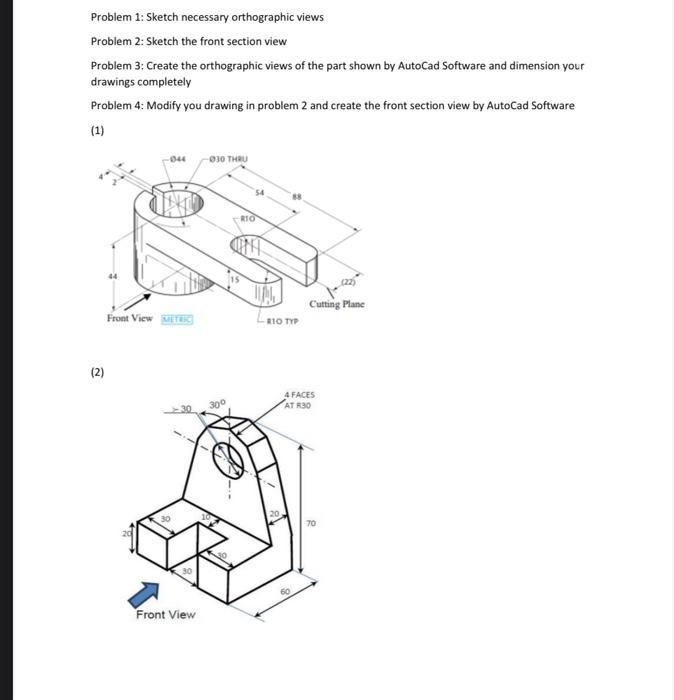 w
QT NGS
| Fr BT) Gg Fle
“LS
T-®
ad
NSP
w
QT NGS
| Fr BT) Gg Fle
“LS
T-®
ad
NSP
This is AI generated Response.
Asked by: Rahul
Created at: 2026-01-12 03:18:33
Asked by: Rahul
Created at: 2026-01-12 03:18:33
Final Answer:
Rendered
Raw Text
Did you like this answer?
# Step-by-Step Solution
Let's address each problem step-by-step for **both parts (1) and (2)**, as shown in your images.
---
## **Problem 1: Sketch Necessary Orthographic Views**
Orthographic views typically include:
- **Front View**
- **Top View**
- **Right Side View**
### (1) Orthographic Views
**Front View:**
Already labeled in the image (see lower left of part (1)).
- Shows the overall height and width.
- Shows the outline and the hole.
**Top View:**
- Would show the width and depth.
- The hole would be a circle, and the slot would be visible.
**Right Side View:**
- Shows height and depth.
- The hole becomes a rectangle, and the slot is visible as a cut-out.
---
### (2) Orthographic Views
**Front View:**
Already indicated by the arrow in the image.
**Top View:**
- Shows the “U” shape cut and the hole as a circle.
**Right Side View:**
- Shows the vertical profile and the thickness of the part.
---
## **Problem 2: Sketch the Front Section View**
The section view is taken by "cutting" the object along a plane to show **internal features**.
### (1) Front Section View
- Cut along the indicated "Cutting Plane".
- The section view will show the internal slot and circular cutout.
- The large hole and slot will be visible as solid lines; hatching will indicate the cut surfaces.
### (2) Front Section View
- Cut vertically through the center.
- You will see the internal slot, the height, the hole, and the thicknesses more clearly.
---
## **Problem 3: Create Orthographic Views in AutoCAD and Dimension**
### Steps:
1. **Draw the part in AutoCAD using exact dimensions.**
2. **Use projection lines to create the top, front, and right-side views.**
3. **Add all necessary dimensions:**
- Overall lengths, widths, heights.
- Hole diameters.
- Fillet or round radii.
- Slot dimensions.
---
## **Problem 4: Modify and Create the Section View in AutoCAD**
### Steps:
1. **Modify your drawing by adding the section plane (use the "Section" tool in AutoCAD).**
2. **Generate the front section view.**
3. **Add hatching to the cut surfaces.**
4. **Dimension the sectioned features.**
---
# **Summary Table**
| Problem | Task | Explanation |
|----------------|---------------------------------------------------------------------------------------|--------------------------------------------------------------------------|
| Problem 1 | Sketch necessary orthographic views (Front, Top, Right Side) | Show all features from different directions |
| Problem 2 | Sketch the front section view | "Cut" the part to show internal features |
| Problem 3 | Create orthographic views in AutoCAD, fully dimensioned | Use CAD tools, add all measurements |
| Problem 4 | Modify drawing in AutoCAD to create the section view | Add section lines and hatching, dimension sectioned features |
---
## **Final Answer (Sketches)**
**For both parts (1) and (2), your answer should include:**
1. **Three orthographic sketches** (Front, Top, Right Side).
2. **A sectioned front view** showing internal features.
3. **AutoCAD drawings** for all views with complete dimensions.
4. **AutoCAD sectioned front view** with hatching and dimensions.
---
### **Sample Sketch Layout (Manual Drafting Example)**
#### (1) Example Orthographic Views
```
TOP VIEW
-------------------------
| _________ |
| | | |
| | | |
| | | |
|_______| |_______|
| O |
-------------------------
FRONT VIEW
-------------------------
| |
| |
| |
| |
| O |
|_________________________|
RIGHT SIDE VIEW
-------------------------
| |
| _______ |
| | | |
| | | |
| |_______| |
|_________________________|
```
*Note: This is a simplified textual representation. Actual sketches should be drawn to scale with proper dimensions as per the image.*
---
**If you need specific sketches (drawn by hand or in software), please let me know which part you want a sketch for, and I can guide you step by step!**
📢 Instructions:
- Ask anything relatd to above question only.
- For new Question goto :