 VIPSolutions
Give step-by-step solution with explanation and final answer:pu be rn Sot i de rc ig ee is below, then create a drawing file from your part file, add all necessary views, and fully cette oa com sop ce Sor ee ha Pi ty mE Se ods ein eli i: Hem Prem wr — hi D S—_— ate 150T § EIEN 2 (FPR | i (© Oi 5he J © NDA spre } ne Ea E£=-= Fywheel == = eT Ee WEEN
Question:
Give step-by-step solution with explanation and final answer: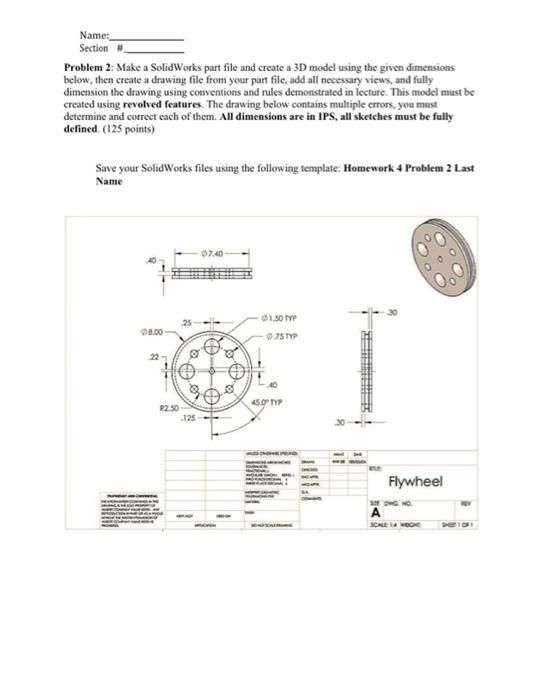 pu
be
rn Sot i de rc ig ee is
below, then create a drawing file from your part file, add all necessary views, and fully
cette
oa com sop ce Sor
ee ha Pi ty
mE
Se ods ein eli i: Hem Prem
wr
—
hi D
S—_—
ate 150T §
EIEN
2 (FPR |
i (© Oi
5he J ©
NDA spre }
ne Ea
E£=-= Fywheel
== = eT
Ee WEEN
pu
be
rn Sot i de rc ig ee is
below, then create a drawing file from your part file, add all necessary views, and fully
cette
oa com sop ce Sor
ee ha Pi ty
mE
Se ods ein eli i: Hem Prem
wr
—
hi D
S—_—
ate 150T §
EIEN
2 (FPR |
i (© Oi
5he J ©
NDA spre }
ne Ea
E£=-= Fywheel
== = eT
Ee WEEN
This is AI generated Response.
Asked by: Mk
Created at: 2026-01-07 22:16:44
Asked by: Mk
Created at: 2026-01-07 22:16:44
Final Answer:
Rendered
Raw Text
Did you like this answer?
# Step-by-Step Solution: Flywheel SolidWorks Model
Let's break down the process to create the flywheel as shown in the drawing, using **revolved features** in SolidWorks. I'll also explain how to identify and correct the drawing errors as requested.
---
## 1. **Analyze the Drawing and Dimensions**
### Key Dimensions from Drawing:
- **Outer Diameter:** 8.00 in
- **Thickness:** .40 in
- **Central Hole Diameter:** 2.25 in
- **Bolt Circle Diameter:** 5.50 in
- **Bolt Hole Diameter:** 1.50 in (Qty 6, equally spaced)
- **Chamfers:** .125 in
- **Other Features:** .30 in deep holes, .25 in diameter, .22 in from center (ambiguous—see below).
---
## 2. **Identify Errors in the Drawing**
1. **Hole Callouts:**
- The positions and size of the .25 in holes are unclear. Are they through holes or blind? The depth is unclear.
- The angle for "45° TYP" for bolt holes is likely incorrect for 6 holes; should be 60° for 6 holes equally spaced.
2. **Chamfer/Fillet:** Make sure only specified features are chamfered.
3. **Dimensioning:** Ensure all features are fully dimensioned and constrained in your sketch.
---
## 3. **SolidWorks Modeling Steps**
### Step 1: Start a New Part
- Open SolidWorks.
- Select **Front Plane** and start a new sketch.
### Step 2: Draw the Main Profile
- **Draw a vertical centerline** (for revolve axis).
- **Draw half the cross-section:**
- Draw a horizontal line (radius = 4.00 in, since diameter = 8.00 in).
- Draw the thickness (vertical line) to .40 in.
- Add the inner circle for the central hole (radius = 1.125 in, since diameter = 2.25 in).
- **Add Chamfer:** If there's a chamfer on the outer edge, add a chamfer of .125 in.
### Step 3: Revolve the Profile
- Use **Revolve Boss/Base** to revolve the profile 360° about the centerline.
### Step 4: Create Central Hole
- Select the front face, make a new sketch.
- Draw a circle with diameter 2.25 in and **cut-extrude** through all.
### Step 5: Create the 6 Bolt Holes
- On the same front face, sketch a circle (bolt circle) with diameter 5.50 in.
- Add a point on the circle.
- Draw a circle of diameter 1.50 in at this point.
- Use **Circular Pattern** to create 6 holes (angle = 360°/6 = 60° each).
- **Cut-extrude** through all.
### Step 6: Add Additional Holes (if needed)
- The meaning of the ".25" holes at ".22" from center is ambiguous. If they are small holes near the center, repeat the circular pattern method at the given radius.
### Step 7: Add Chamfers/Fillets (if any)
- Apply .125 in chamfer if specified.
### Step 8: **Fully Define Sketches**
- Ensure all dimensions are added and sketches are fully defined (black lines in SolidWorks).
---
## 4. **Create Drawing File**
- Go to **File > Make Drawing from Part**.
- Add necessary views: top, front, isometric.
- Add all dimensions as per the drawing and conventions.
- **Correct errors** in the drawing (e.g., fix the bolt hole spacing angle).
---
## 5. **Final SolidWorks File Naming**
- Save as: `Homework 4 Problem 2 Last Name`
---
## 6. **Final Answer and Notes**
### **Summary of Steps:**
1. Draw half-profile of flywheel.
2. Revolve to create solid.
3. Cut central hole.
4. Pattern and cut bolt holes.
5. Add any additional features.
6. Fully define all sketches.
7. Create drawing and dimension correctly.
---
### **Drawing Corrections:**
- **Bolt hole angle:** For 6 holes, use 60°, not 45°.
- **Clarify all hole depths and locations.**
- **Ensure all necessary dimensions are present.**
---
### **Final Solid Model Features:**
- **Diameter:** 8.00 in
- **Thickness:** .40 in
- **Central hole:** 2.25 in diameter
- **6 holes:** 1.50 in diameter, on 5.50 in bolt circle, 60° apart
- **Chamfer:** .125 in (if spec’d)
---
If you need screenshots or a sample sketch, let me know!
📢 Instructions:
- Ask anything relatd to above question only.
- For new Question goto :