 VIPSolutions
Give step-by-step solution with explanation and final answer: Assume corner fillets R 1 0 unless otherwise specified. Mark an axis of aymmetry using a centerline along the length of the part. Mark ONLY the dimensions ( in a different color ) shown here in your finished drawing.Problem 2: (20 points) ‘Complete the following 2d drawing in AutoCAD. AU dimensions in mm. Assume corner filets R10 unless otherwise specified. Mark sn as of symmetry using a entering along the length of the part. Mark ONLY the dimensions (in a different color] shown here in your finished drawing. 7 @ © 120 n CL 2 ©) R20
Question:
Give step-by-step solution with explanation and final answer:
Assume corner fillets R
1
0
unless otherwise specified. Mark an axis of aymmetry using a centerline along the length of the part. Mark ONLY the dimensions
(
in a different color
)
shown here in your finished drawing.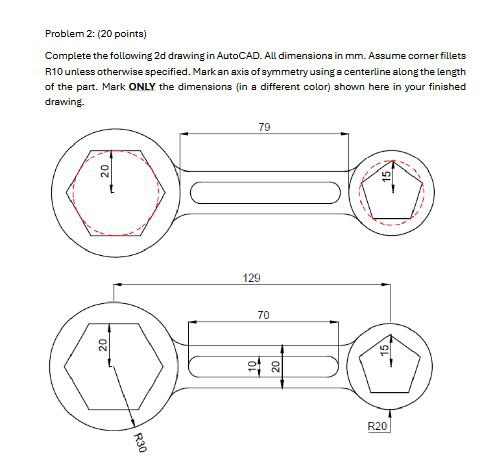 Problem 2: (20 points)
‘Complete the following 2d drawing in AutoCAD. AU dimensions in mm. Assume corner filets
R10 unless otherwise specified. Mark sn as of symmetry using a entering along the length
of the part. Mark ONLY the dimensions (in a different color] shown here in your finished
drawing.
7
@ ©
120
n
CL 2 ©)
R20
Problem 2: (20 points)
‘Complete the following 2d drawing in AutoCAD. AU dimensions in mm. Assume corner filets
R10 unless otherwise specified. Mark sn as of symmetry using a entering along the length
of the part. Mark ONLY the dimensions (in a different color] shown here in your finished
drawing.
7
@ ©
120
n
CL 2 ©)
R20
This is AI generated Response.
Asked by: Alok Kumar
Created at: 2026-01-21 00:04:15
Asked by: Alok Kumar
Created at: 2026-01-21 00:04:15
Final Answer:
Rendered
Raw Text
Did you like this answer?
# Step-by-Step Solution for the 2D Drawing
Let's break down the requirements and steps to complete the drawing as specified:
---
## **Given Data & Requirements**
- **Corner fillets:** R10 unless otherwise specified.
- **Axis of symmetry:** Centerline along the length.
- **Only mark the shown dimensions** (in a different color).
- **Dimensions given in the drawing:**
- **Overall length:** 129 mm
- **Distance between circle centers:** 79 mm
- **Length of the slot:** 70 mm
- **Circle radii:** 20 mm (left), 15 mm (right), 20 mm (slot ends)
- **Bottom right fillet:** R20
---
## **Step 1: Draw the Two Main Circles**
1. **Draw left circle:**
- **Radius:** 20 mm
- **Position:** Start at (,) for the center.
2. **Draw right circle:**
- **Radius:** 15 mm
- **Position:** Center at (79,) (since the centers are 79 mm apart).
---
## **Step 2: Draw the Hexagons**
- **Hexagon in left circle:** Circumscribed about the 20 mm radius circle.
- **Hexagon in right circle:** Circumscribed about the 15 mm radius circle.
---
## **Step 3: Draw the Slot**
1. **Slot Length:** 70 mm
2. **Slot Width:** Diameter of 20 mm (since ends are filleted with R10, unless specified otherwise).
3. **Position:** Center the slot along the axis of symmetry, between the two main circles.
---
## **Step 4: Draw the Connecting Arms**
- Draw tangent lines connecting the outer circles and the slot as shown.
- Apply **R10 fillets** at corners unless otherwise specified.
---
## **Step 5: Draw the Bottom Right Fillet**
- Draw a fillet with **R20** at the bottom right, as shown.
---
## **Step 6: Mark the Axis of Symmetry**
- Draw a centerline along the length of the part, through the centers of the two main circles and the slot.
---
## **Step 7: Mark ONLY the Specified Dimensions (in Different Color)**
- **129 mm** overall length (top view).
- **79 mm** center-to-center distance between circles (top view).
- **70 mm** slot length (top view).
- **R20** fillet at bottom right (side view).
- **20 mm** and **15 mm** radii for the circles (side view).
---
## **Final Drawing Checklist**
- [x] Two main circles with correct radii and position
- [x] Hexagons inside circles
- [x] Slot with correct length and fillet radius
- [x] Tangent arms with fillets
- [x] R20 fillet at bottom right
- [x] Axis of symmetry (centerline)
- [x] ONLY the specified dimensions marked, in a different color
---
## **Example Final Drawing (Summary Illustration)**
- **Red/Blue/Other color:** Show only the dimensions given in the original image.
- **Dashed line:** Centerline for axis of symmetry.
---
## **Explanation**
- The main challenge is to ensure fillets are correct (R10 default, R20 where specified).
- Only **specified dimensions** are to be shown, in a different color for clarity.
- The **axis of symmetry** helps with alignment and is shown as a centerline.
---
## **Final Answer**
**The finished drawing includes:**
- Two correct circles at the specified positions.
- Hexagons inside each circle.
- Slot with correct fillets.
- All corner fillets R10 (except R20 at bottom right).
- Tangent lines/arcs connecting features.
- Centerline for axis of symmetry.
- ONLY the dimensions shown in the image, in a different color.
---
If you need the **actual AutoCAD commands or steps**, let me know!
Question:
AutoCAD commands
This is AI generated Response.
Asked by: Alok Kumar
Created at: 2026-01-21 00:06:50
Asked by: Alok Kumar
Created at: 2026-01-21 00:06:50
Final Answer:
Rendered
Raw Text
Did you like this answer?
# AutoCAD Commands for Completing the 2D Drawing
To execute the drawing based on the provided specifications in AutoCAD, follow these commands step-by-step:
---
## **Step 1: Set Up the Drawing**
1. **Open AutoCAD.**
2. **Set units to millimeters:**
```
Command: UNITS
```
---
## **Step 2: Draw the Main Circles**
1. **Draw the left circle (R20):**
```
Command: CIRCLE
Center point: (0, 0)
Radius: 20
```
2. **Draw the right circle (R15):**
```
Command: CIRCLE
Center point: (79, 0)
Radius: 15
```
---
## **Step 3: Draw the Slot**
1. **Draw a rectangle for the slot:**
```
Command: RECTANGLE
First corner point: (20, -35) (to center the slot)
Opposite corner point: (90, 35)
```
2. **Fillet the slot ends (R10):**
```
Command: FILLET
Radius: 10
Select the two ends of the slot.
```
---
## **Step 4: Draw the Connecting Arms**
1. **Draw lines connecting the outer edges of the circles to the slot:**
```
Command: LINE
From: (20, 0)
To: (20, -35) (to add the left arm)
```
Repeat similarly for right connections.
---
## **Step 5: Draw the Bottom Right Fillet**
1. **Select the bottom right corner and apply R20 fillet:**
```
Command: FILLET
Radius: 20
Select the two lines forming the corner.
```
---
## **Step 6: Mark the Axis of Symmetry**
1. **Draw the centerline:**
```
Command: LINE
From: (0, -50)
To: (0, 50)
```
2. **Change the line type to dashed (optional for aesthetics):**
```
Command: LTYPE
Select the dashed line type.
```
---
## **Step 7: Mark Dimensions in Different Color**
1. **Set the dimension style to a different color:**
```
Command: DIMSTYLE
Create or modify a dimension style with a new color.
```
2. **Add dimensions:**
```
Command: DIMLINEAR
Select the points to dimension.
```
---
## **Final Touches**
1. **Remove any unwanted lines or adjust layers as needed.**
2. **Save your drawing:**
```
Command: SAVEAS
```
---
## **Conclusion**
By following these commands, you will recreate the drawing with all specified features and dimensions in AutoCAD. Always check your work against the original requirements to ensure accuracy. If you have any additional requirements or need further assistance, feel free to ask!
📢 Instructions:
- Ask anything relatd to above question only.
- For new Question goto :